Kling 3 vs Kling 3 Omni: Key Differences and Best Use Cases
 RoboNeo TeamOctober 29, 2026
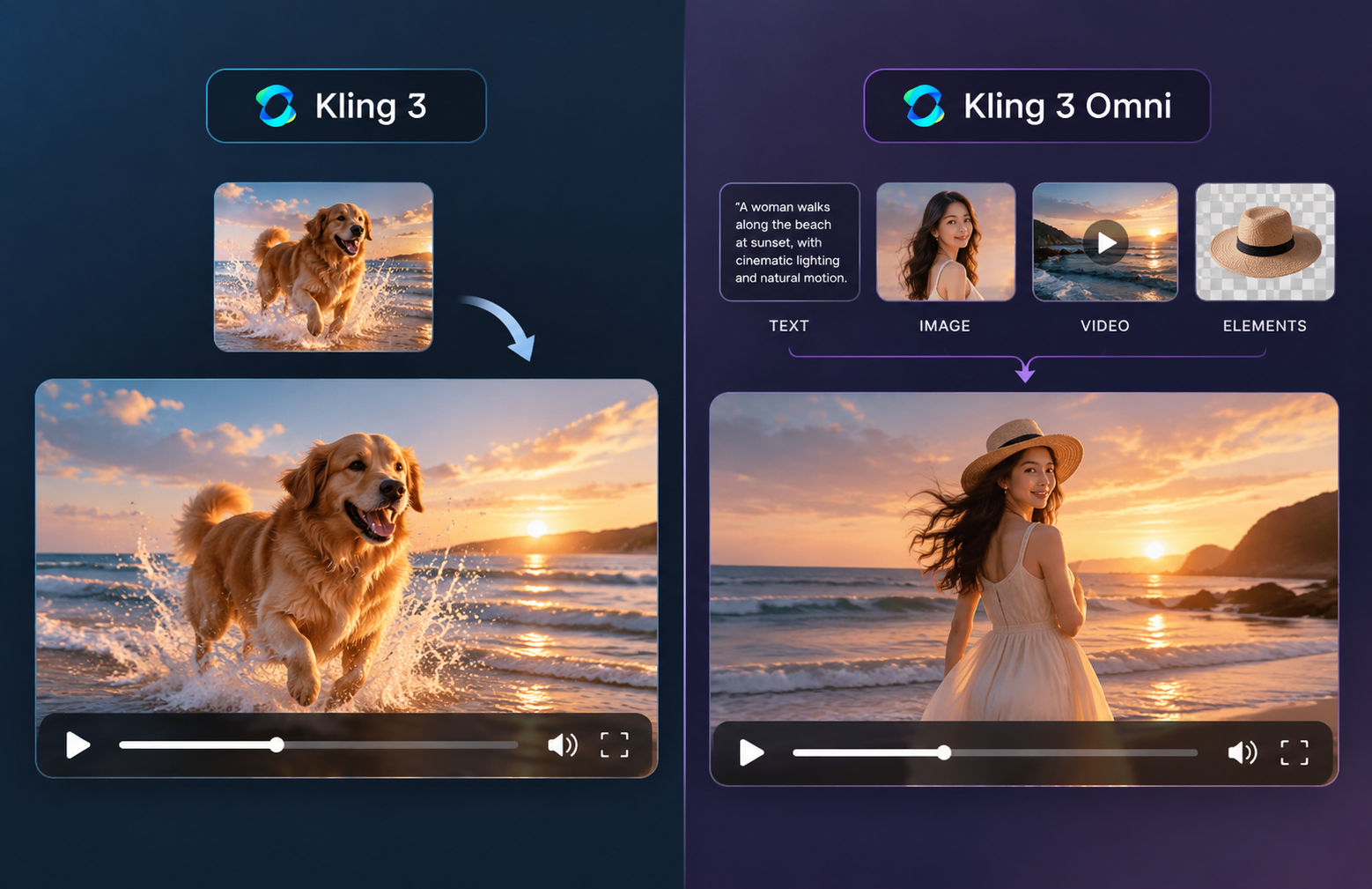
Kling 3 is a practical choice for text-to-video, start-and-end-frame generation, and projects focused on multi-shot storytelling or motion control. Kling 3 Omni (O3) is better suited to workflows involving multiple references, reusable characters and voices, or modifications to existing video clips.
Both models offer native audio and multi-shot generation, but their strengths lie in different workflows. This Kling 3 vs Kling 3 Omni comparison covers their reference inputs, character and voice consistency, video editing capabilities, and the projects each model suits best.
How We Compared Kling 3 and Kling 3 Omni
We reviewed the official Kling VIDEO 3.0 User Guide and Kling VIDEO 3.0 Omni User Guide, focusing on three comparable video creation tasks:
Test 1: Text-to-Video and Multi-Shot Generation. Use the same prompt for both models: "A woman walks into a café, orders coffee, and sits by the window. Three shots with natural dialogue." Compare shot transitions, camera movement, dialogue, and audio synchronization.
Test 2: Character and Product Consistency. Use the same reference image of a skincare bottle and generate a clip showing someone holding and rotating it. Compare packaging details, subject appearance, and consistency as the camera moves.
Test 3: Multi-Character Scenes and Voice Control. Use the same scene prompt featuring two characters exchanging dialogue. Compare facial consistency, speaker identification, lip synchronization, and voice stability. Omni's additional character voice references can then be examined separately.
These are comparison scenarios based on the models' documented capabilities, not independent benchmark results. Official examples illustrate their features, but do not establish which model performs better under identical conditions. Actual output quality and credit costs should be verified through hands-on testing.
What Are the Key Differences Between Kling 3 and Kling 3 Omni?
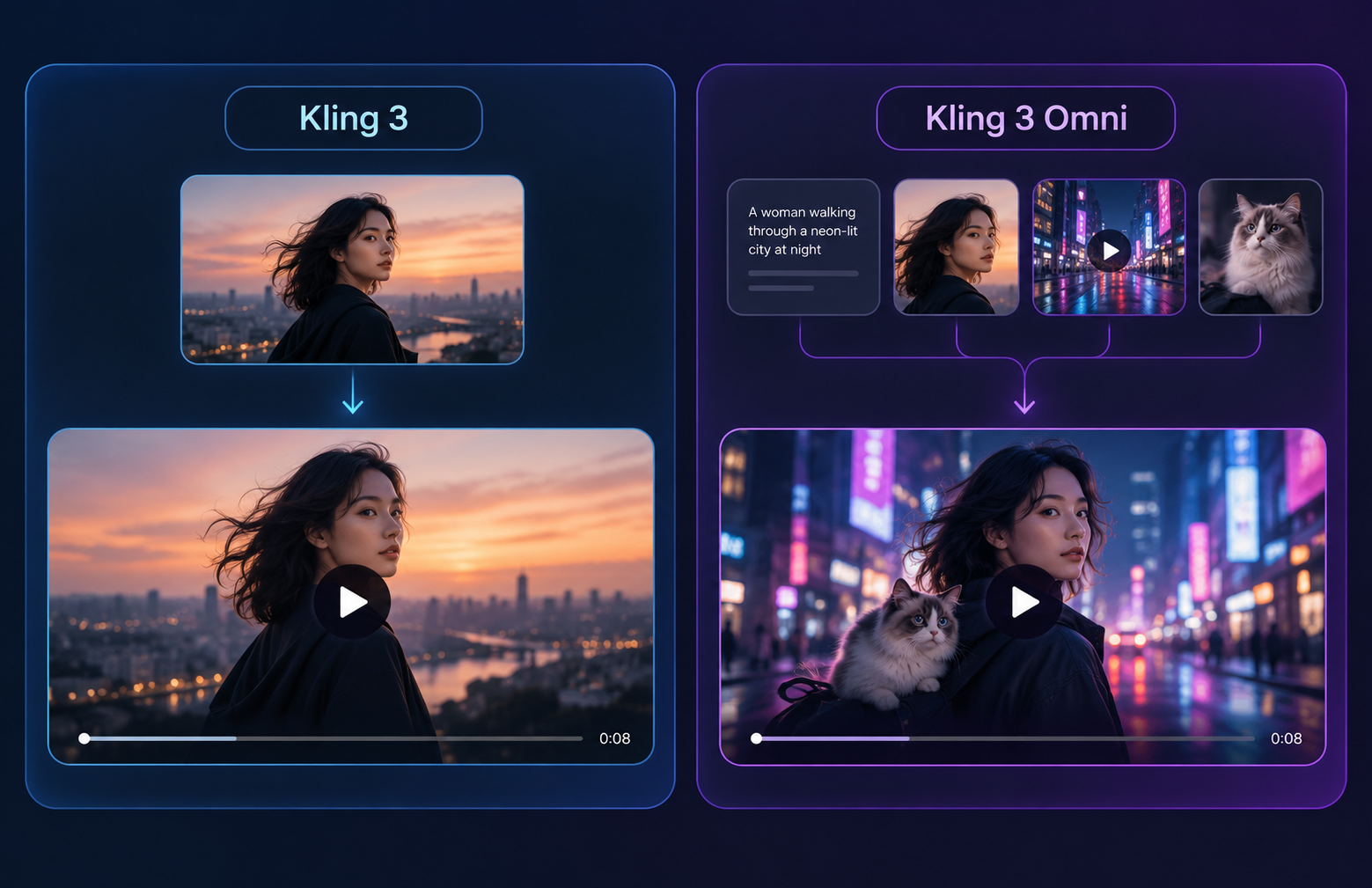
The main differences between Kling 3 and Kling 3 Omni lie in their reference workflows, character and voice controls, and video modification capabilities. Both can generate new scenes with native audio and multiple shots, but Omni offers more options for combining reference materials and reusing characters.
|
Kling 3 |
Kling 3 |
Kling 3 Omni |
| Primary workflow | Text-to-video, image-to-video, start/end frames, multi-shot creation | Multimodal reference generation, reusable elements, video modification |
| Reference inputs | Text, images, start/end frames, element references | Text, images, videos, and reusable elements |
| Maximum duration | Up to 15 seconds | Up to 15 seconds |
| Resolution | 720p / 1080p | 720p / 1080p |
| Native audio | Available | Available; depends on input mode |
| Multi-shot | Automatic and custom multi-shot | Automatic and custom multi-shot |
| Start/end frames | Supported | Supported |
| Element references | Up to 3 elements with applicable start-frame workflows | Multiple image, video, and element references |
| Element Voice | Voice tone control in supported modes | Voice binding to reusable character elements |
| Video element reference | Available in applicable workflows | Create reusable character elements from video |
| Existing video editing | Not the primary workflow | Prompt-based video modification |
| Key advantage | Multi-shot storytelling and multi-character dialogue | Multimodal references, character voice reuse, and video editing |
Reference Input Differences
Kling 3 works well with text prompts, starting and ending frames, and element references. Its start-frame workflows can use up to three elements to help maintain the appearance of characters or objects.
Kling 3 Omni offers a broader reference workflow. Creators can combine product images, character elements, and video references to guide different parts of a scene. The best image-to-video AI tools also use visual references, although the available controls vary by model.
Omni accepts up to seven images or elements without video input. When a video is included, the limit becomes four images or elements alongside one video. Using video to create a reusable character element is different from editing an existing clip.
Character and Voice Differences
Both models offer character consistency controls and native audio, but their approaches differ.
Kling 3 can use reference elements to maintain character appearance and handle dialogue involving three or more characters. Its native audio capabilities also include multilingual speech and speaker control.
Kling 3 Omni adds Element Voice, allowing creators to associate a specific voice with a reusable character. A 3–8-second character video can provide appearance and voice references, while multi-image character elements can also use voice recordings.
For Omni's reference workflow, up to seven images or elements are allowed without a video input, or four alongside a video. These limits matter when planning scenes with several recurring characters.
Voice consistency still requires review. Facial appearance, speaking order, lip movements, and voice tone should be checked across generated clips.
Generation and Editing Differences
Kling 3 is a practical choice for generating new scenes with controlled character actions and camera movements. Its Multi-Shot and Custom Multi-Shot features let creators plan shot transitions, camera angles, and scene timing. For action-driven videos, Motion Control can guide character movements using a reference video in supported workflows.
Kling 3 Omni is better suited to projects that need to reuse or modify existing footage. Its multimodal workflow combines video references, images, and reusable elements. For example, a clothing brand can use an existing walking clip to test a different outfit or background without generating the entire scene from scratch.
The choice depends on what needs to change: Kling 3 is a practical starting point when creating new footage with planned movements and camera directions, while Kling 3 Omni is worth considering when an existing clip needs visual modifications. These workflows are not strictly exclusive, and supported controls depend on the selected mode.
For basic trimming, captions, or music adjustments, a conventional editor may be more appropriate. The available AI video generation models should be compared based on the editing task and required controls.
Which Kling Model Is Best for Your Video Project?
The Kling 3.0 Omni vs Kling 3.0 decision depends on whether you're creating new footage, maintaining visual consistency, or modifying an existing clip.
| Job | Start with | Why |
| Test new scenes and creative concepts | Kling 3 | Generate initial shots with text prompts, starting frames, and motion directions |
| Create multi-shot stories | Kling 3 | Plan connected shots, camera movements, and character actions |
| Keep characters or products consistent | Kling 3 Omni | Combine reusable elements and multiple references across scenes |
| Reuse character voices | Kling 3 Omni | Element Voice can help maintain a character's voice across clips |
| Modify existing video footage | Kling 3 Omni | Use video references to change visual elements while retaining useful footage |
Creating New Scenes and Visual Concepts
Kling 3 is a practical starting point for fictional scenes, atmosphere shots, and early storyboards where detailed reference control is not essential.
A filmmaker developing a rainy city scene may only need a starting image and a prompt describing someone walking past storefronts. Test the composition and camera movement first, then refine the shot before developing additional scenes.
An AI video generator tool can also help creators compare models during the concept stage.
Keeping Characters and Products Consistent
Kling 3 Omni is worth considering when characters or products must remain recognizable across multiple scenes.
A skincare campaign might feature the same bottle on a bathroom counter, in someone's hand, and beside other products. Omni's reusable elements and multimodal references can help maintain its appearance across these shots.
However, a simple project may not require Omni. If a single starting image produces acceptable results with Kling 3, additional references may add unnecessary work. For branded content, always check logos, packaging, colours, and product details.
Editing Existing Video Clips
Kling 3 Omni is particularly useful when existing footage already has the right movement and composition but needs visual changes.
For example, a clothing advertisement may have suitable walking motion and camera timing, but the team wants to test another outfit or background. Omni can use the original clip as a reference for applicable video modification tasks.
Check that the intended movement and framing remain consistent after editing. For basic trimming, subtitles, or music changes, a conventional video editor is usually more appropriate.
A practical workflow is to start with Kling 3 to test the concept, camera movement, and initial shots. Once the visual direction is established, consider Kling 3 Omni if the project needs stronger reference control, recurring characters, or changes to existing footage.
Tips: Create Video with Kling 3 and Kling 3 Omni in RoboNeo
RoboNeo lets you work with Kling 3.0 and Kling 3 Omni (O3) on the same canvas, making it easier to compare different generation approaches. You can test new scenes, reuse visual references, and refine individual clips without moving between separate workspaces.
Step 1: Create a Video Node
Open RoboNeo and add a video node to the canvas. Select Kling 3.0 or Kling O3 from the available video models.
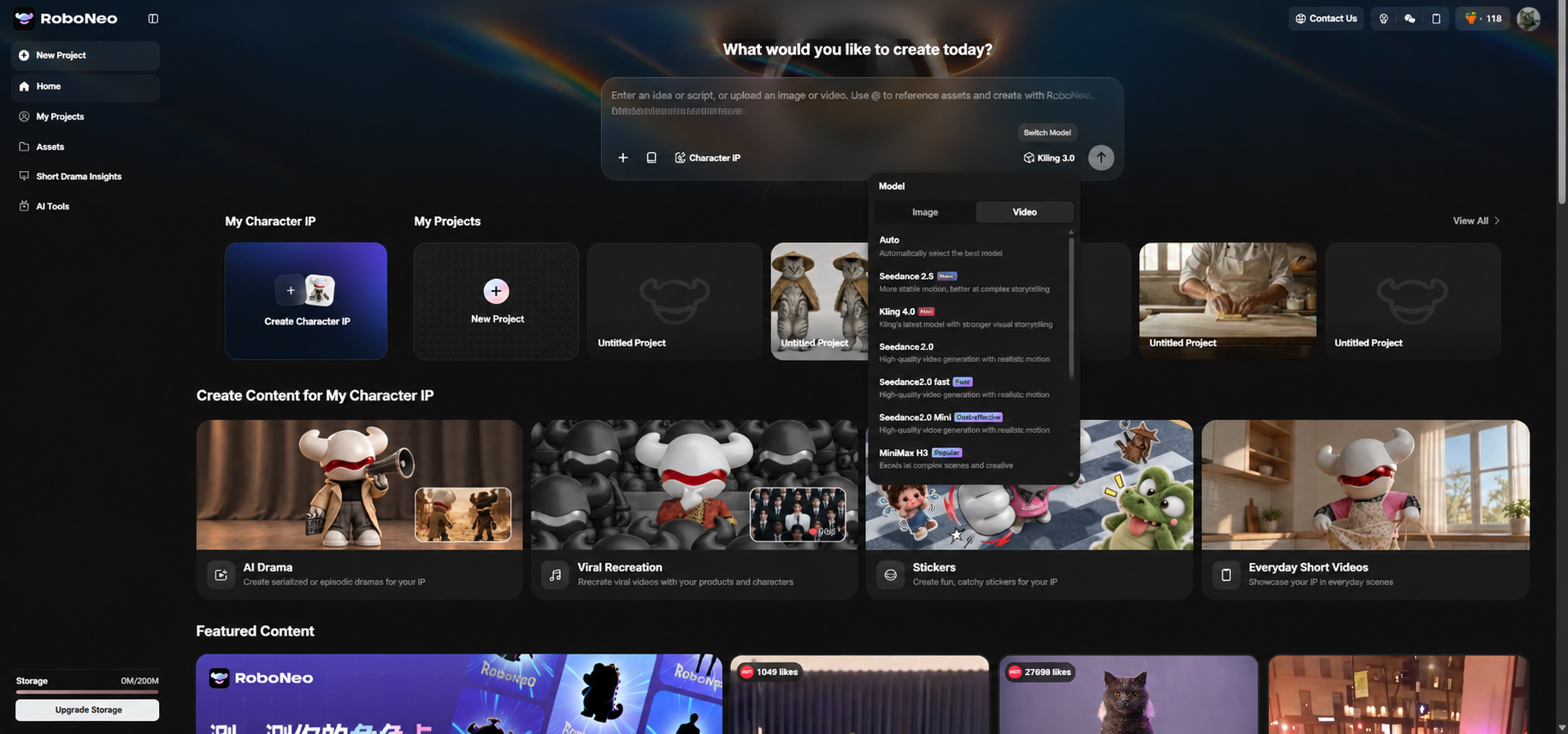
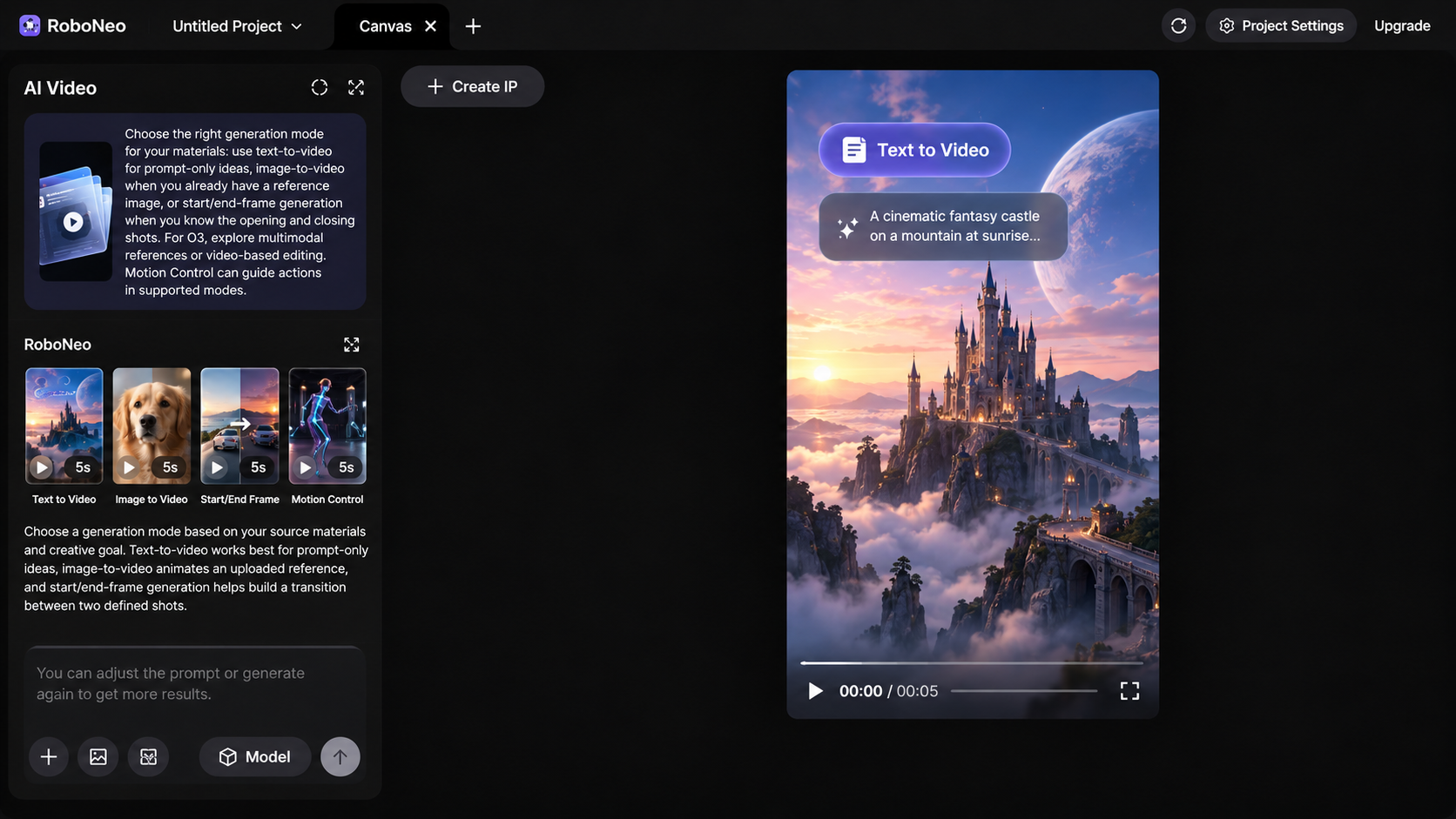
Step 2: Choose Your Generation Mode
Select text-to-video, image-to-video, or start/end-frame generation for Kling 3.0, depending on your source materials. For O3, explore multimodal references or video-based editing; Motion Control can guide actions in supported modes.
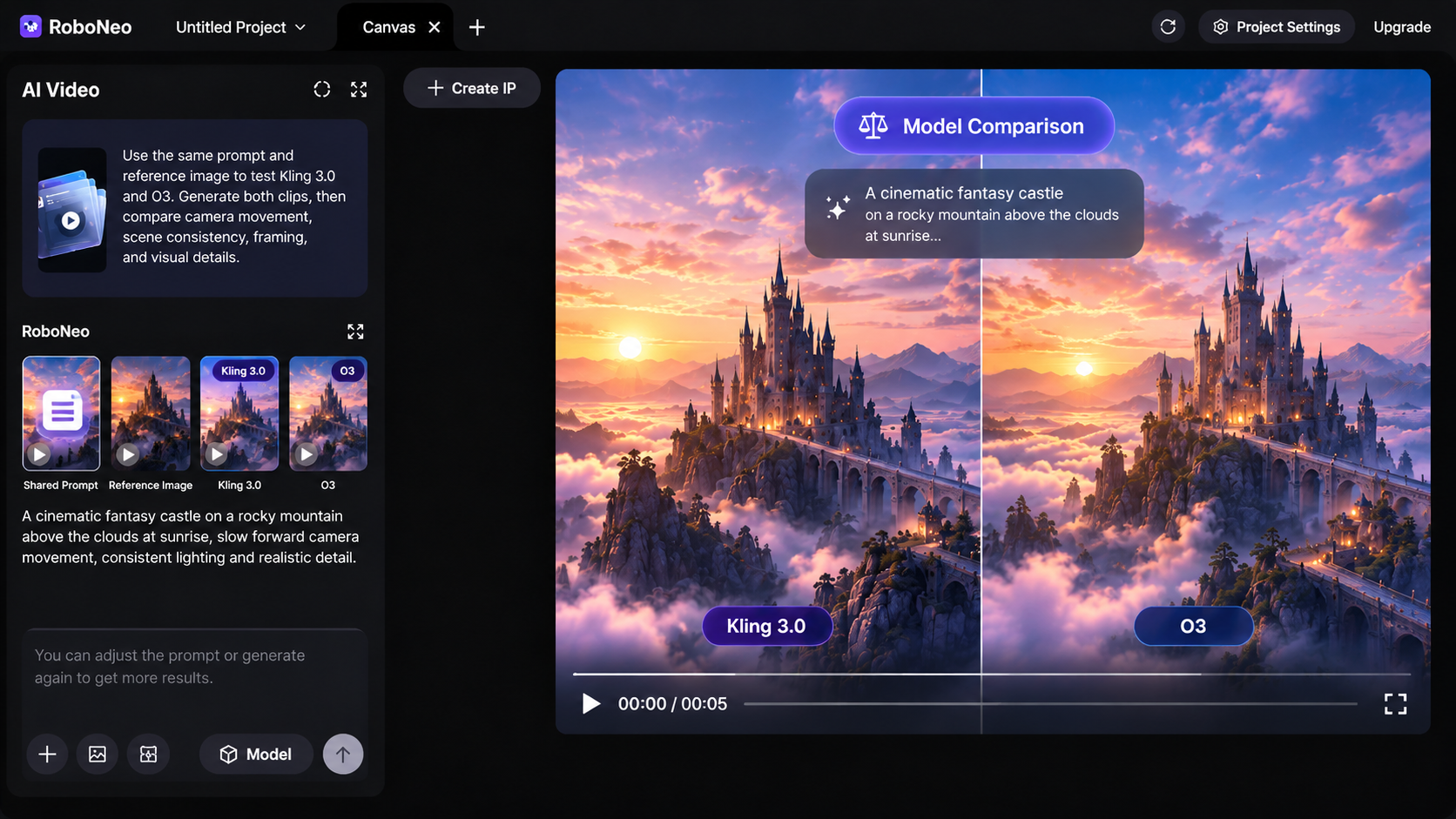
Step 3: Test Both Models on the Same Canvas
Create separate video nodes for Kling 3.0 and O3, using the same prompt and reference images where supported. Generate both clips and compare movement, character consistency, camera direction, and visual details.
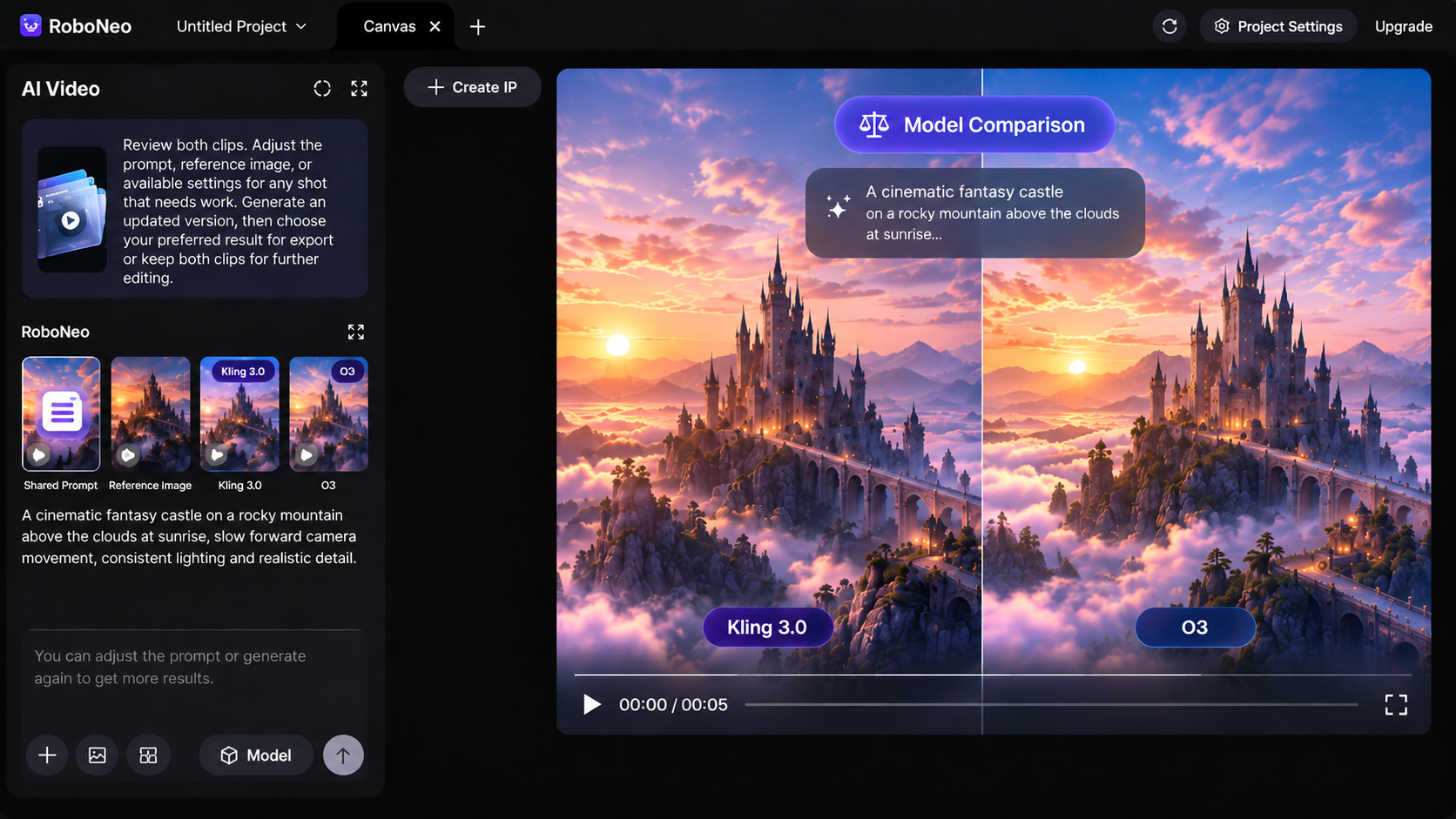
Step 4: Refine and Export Your Clips
Adjust the prompts, references, or available settings for clips that need improvement. Review the updated results, then export your preferred version or keep both clips for further editing.
RoboNeo's AI Agent can help develop scripts, refine prompts, and plan additional shots, while the canvas keeps references, generated clips, and previous versions together. This makes it easier to compare Kling 3.0 and O3, revise specific scenes, and continue building a video project without losing earlier work.
Compare Kling 3 vs. Kling 3 Omni
FAQ
Is Kling O3 the same as Kling 3 Omni?
In the video model naming context, Kling O3 generally refers to Kling VIDEO 3.0 Omni. Different platforms may display the model as O3 or 3.0 Omni, so check the complete model name and task type before generating. Also make sure the letter "O" is not being confused with the number "0".
Can I reuse Kling 3 prompts in Kling 3 Omni?
Yes. Descriptions of the subject, action, setting, and camera can usually be reused as a starting point. References, element inputs, and video modification instructions may need to be adjusted for the Omni workflow. Switching models does not guarantee the same result from the same prompt.
Can I combine clips from both models in one video?
Yes. Exported clips from both models can be assembled in a standard editing workflow. Keep the aspect ratio and output settings consistent where possible, then check character appearance, color, camera movement, and sound at the transitions. Combining clips does not automatically transfer the other model's references or generation settings.
Can I use videos from either model commercially?
Commercial use depends on the actual platform, account plan, and applicable terms rather than the model name alone. Check the rights for reference images, people, voices, music, and other third-party materials separately. If the videos are generated through RoboNeo or another platform, review its current terms for AI-generated content before commercial publication.
Do Kling 3 and Kling 3 Omni support multilingual audio?
Yes. Kling 3 supports native dialogue in five languages: Chinese, English, Japanese, Korean, and Spanish. It also handles mixed-language conversations, different accents, and dialogue involving multiple characters. Kling 3 Omni adds Element Voice, allowing creators to bind a character's voice using a 3–8-second reference video or a 5–30-second voice recording. However, Omni's video-input mode does not currently support native audio generation.
Which model is more cost-effective, Kling 3 or Kling 3 Omni?
For standard generation, both models have the same published Kling AI rates: 6 credits per second for 720p without audio and 12 credits per second for 1080p with audio. A 5-second 1080p video with native audio costs 60 credits on either model. Omni's video-input editing costs more, at 16 credits per second for 1080p without native audio, or 80 credits for five seconds. Kling 3 is a practical choice for straightforward generation, while Omni may justify the extra cost when modifying existing footage. RoboNeo's credit charges should be checked separately.
You May Be Interested
AI Video Generation Models: What Works for Video Projects
Sora vs Veo: Which AI Video Model Is Better?

What AI Model Writes Stories Best? 7 Tools Compared
DPI vs PPI: Key Differences for Print and Screen
Seedance 2.0 vs Sora: What They Are and Which Is Better