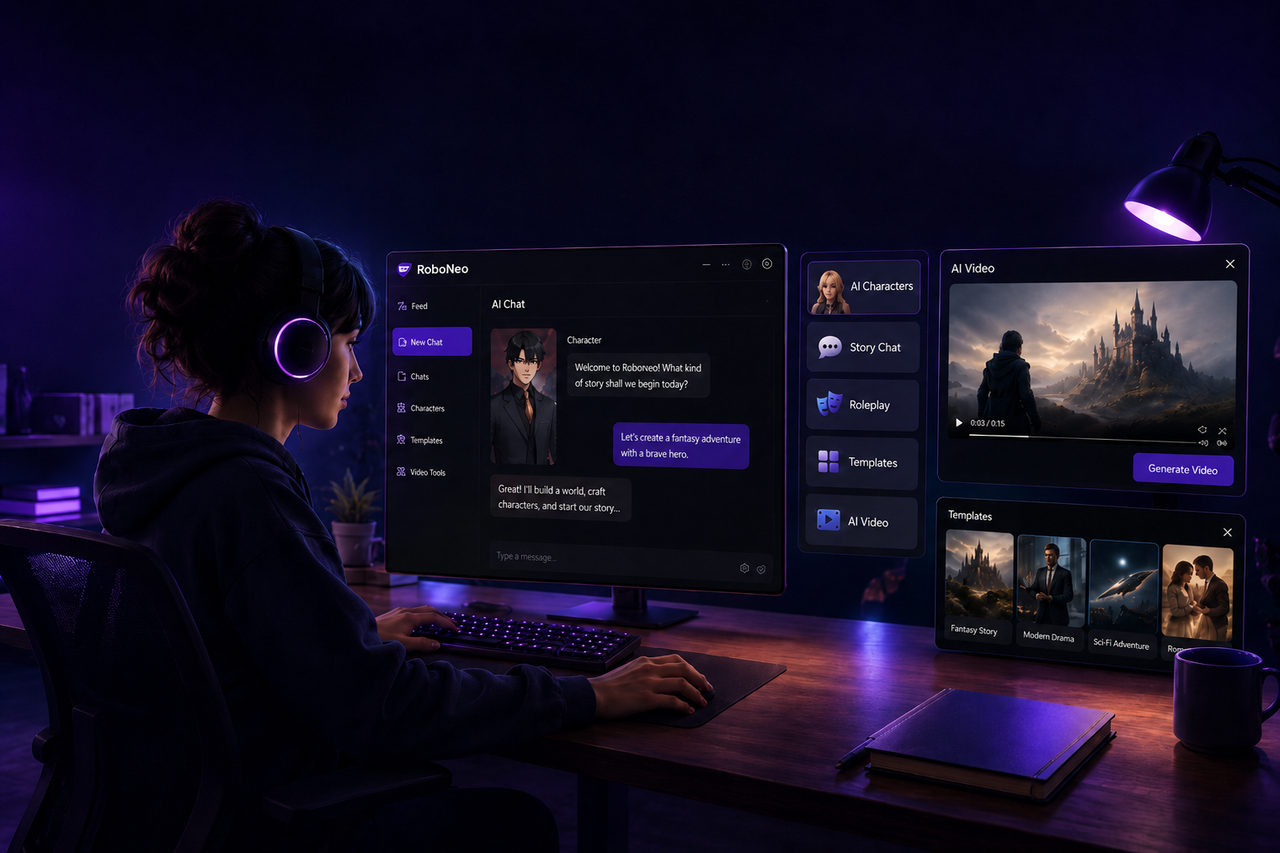
How to Use Seedance 2.0: From Prompt to Final Video
 RoboNeo TeamSeptember 9, 2026
To use Seedance 2.0, choose an input method, prepare a focused prompt and any reference files, generate a short clip, review the result, and refine only the parts that need improvement.
Seedance 2.0 is ByteDance's multimodal AI video model, supporting text, images, video, and audio. It is mainly designed for short clips rather than complete long-form videos. This guide explains how to choose the right input method, generate a first clip step by step, and improve consistency across multiple shots.
Why Use Seedance 2.0 for AI Video?
Seedance 2.0 is useful when text alone does not give enough control over appearance, motion, framing, or pacing. Instead of putting every creative decision into one long prompt, creators can use different references to guide specific parts of a shot.
More Ways to Guide the Video
A project can start with text only, but images, video, and audio can add information that is difficult to communicate precisely in words.
This is especially useful when creative assets already exist. A fashion team may have a product photo, a movement reference, and a clear setting. The product image can define the handbag, the movement clip can guide the model's turn, and the prompt can describe a rainy downtown street at night.
For someone searching for how to try Seedance 2.0, it is enough to start with the material already available and add references only when they solve a specific creative problem.
Better Control with References
References are most valuable when they reduce uncertainty. An image can establish a character, product, room, color palette, or opening composition. Video can communicate body movement, timing, or camera behavior. Audio can help establish rhythm or atmosphere when the platform supports those controls.
A coffee brand may already have approved packaging photography. That image can keep the product recognizable while the prompt focuses on the action: steam rises from the cup as the camera slowly pushes toward the logo.
References improve control, but they do not guarantee exact duplication. Small visual details may still shift between generations.
Faster Visual Testing
Seedance 2.0 also makes it easier to test a concept before building a longer video around it. A marketing team can compare product reveals, while a filmmaker can preview the mood of a storyboard scene.
Short clips make these decisions easier to evaluate before more time is spent on a full sequence. They can also reveal common limitations of AI video generation before additional shots are created. Once a direction works, additional shots can be generated around it.
Choose the Right Input Method

Before writing the prompt, look at what source material already exists. The right input method depends on how much of the scene has already been defined.
| Input Method | Required Material | Best For | Level of Control | Main Limitation |
| Text Only | Written prompt | New concepts, simple scenes | Moderate | Appearance may vary |
| Image Reference | Image plus prompt | Characters, products, compositions | Higher | Motion needs clear direction |
| Multimodal References | Text with image, video, or audio | More controlled scenes | Highest | Conflicting inputs may reduce consistency |
Text Only
Text-to-video generation works well when you are starting from an idea rather than an existing visual asset. Without a reference image, the prompt needs to describe the subject, action, environment, camera behavior, and overall look.
A travel creator could ask for a vintage camper van driving along the Pacific coast at sunrise from a low tracking angle. The scene is clear enough to generate without a reference image.
This method is useful for concept exploration, landscapes, and straightforward actions. It gives the model more freedom, so exact character or product details may vary more between outputs.
Image Reference
Reference image-to-video is a better starting point when the subject already has a defined appearance. A character design, product photo, room concept, or rendering can establish the visual starting point, while the prompt explains what should happen during the shot.
A furniture brand with an approved chair photo could request a slow camera orbit around the chair in a bright apartment. The image anchors the product, while the prompt controls movement and environment.
Some workflows may also support first-frame or first-and-last-frame control. Clear references are usually easier for the model to interpret than crowded collages.
Multimodal References
Multimodal input is useful when one file cannot communicate everything the shot needs. A character image may define appearance, a short video may guide movement, and an audio file may set the rhythm. The prompt connects those sources and explains the role of each one.
More references do not automatically improve results. If several files show different lighting, clothing, framing, or movement, the model may receive competing instructions. Every reference should have a clear purpose.
How to Use Seedance 2.0 Step by Step
Once the input method is selected, the generation process becomes much simpler.
Step 1: Open the AI Video Generator

Open an AI video generator and create a new project. In RoboNeo, check the current model list and select Seedance 2.0 when it is available.
Before uploading anything, review the supported inputs, clip duration, aspect ratio, output quality, credit cost, and regional availability.
Step 2: Add the Inputs
Upload only the files needed for the shot. Clear, high-resolution assets are easier for the model to interpret. Remove duplicate images and references that introduce a different visual direction.
When several files are involved, simple labels can keep the workflow organized:
Reference 1: character appearance
Reference 2: walking movement
Reference 3: lighting and color mood
Use the same labels in the prompt so the role of each file stays clear. Make sure you have permission to use any uploaded images, video, audio, characters, or branded assets.
Step 3: Write the Prompt
When you make AI videos, a strong prompt does not need to be long. It needs to make the shot easy to understand.
A practical structure is:
Subject + Action + Setting + Camera + Style + Audio
A prompt might read:
A woman in a red raincoat walks slowly through a quiet downtown street at night. The camera tracks backward in front of her at walking speed. Wet pavement reflects storefront lights. Use natural cinematic lighting with subdued colors and soft traffic ambience.
The scene has one main action and one main camera movement, which reduces competing instructions.
With reference files, explain their roles near the beginning of the prompt. Reference 1 may define the character's appearance, while Reference 2 controls the walking motion. Specific camera language is also more useful than vague phrases such as "make it cinematic." "The camera slowly pushes in from a medium shot to a close-up" gives the model a visible action to follow.
Step 4: Generate the Clip
Choose the available duration, aspect ratio, and output settings, then generate the first version.
For an initial test, keep the shot short and focused. A five-second product reveal is easier to evaluate than a scene with several people, multiple actions, and two camera changes.
When the clip is ready, check whether the subject matches the reference, the action is correct, the camera moves as intended, and the framing stays usable. Keeping more than one acceptable version can help because one clip may have better motion while another has stronger composition.
Step 5: Refine the Result
The first generation is often a starting point. Efficient revisions begin by identifying the specific problem.
If the movement looks unnatural, simplify the action. If the character changes too much, reuse the same reference and reinforce the key appearance details. If the camera behaves unpredictably, remove extra movement instructions and keep one primary direction.
A restaurant sequence shows why this matters. Asking a server to carry several dishes, place them on the table, turn toward the camera, smile, and speak in one short clip creates too many actions. Splitting the idea into an approach shot and a finished-table shot gives each generation a clearer task.
Change only one or two variables at a time. Otherwise, it becomes difficult to know which adjustment improved the result.
Tips for Better Seedance 2.0 Results

Learning how to use Seedance effectively is less about adding more detail and more about removing ambiguity.
Assign Every Reference a Role
Each reference should have one clear job. If one image defines the character, let it handle appearance. If a video defines movement, say so directly. Conflicting references make results harder to control when several files try to define the same feature differently.
Keep Each Shot Focused
A short clip usually works better when it has one main action and one primary camera movement.
A cafe scene in which two friends enter, order drinks, sit down, and start talking contains several separate events. Dividing it into an entrance shot, an ordering shot, and a table shot gives each generation a clearer objective.
Maintain Visual Continuity
Several good clips can still feel disconnected when clothing, lighting, or the environment changes between them.
Reuse the same character, product, and scene references whenever possible. Keep clothing color, hairstyle, weather, time of day, and lighting consistent across related prompts. When the workflow allows it, the final frame of one clip can become a reference for the next.
Change One Detail at a Time
Prompt refinement works better when each change can be evaluated separately. If the motion is wrong, adjust the action first. Once that improves, review the camera. Lighting and style can be handled afterward.
Saving successful prompts and settings provides a useful starting point for similar shots later.
FAQ
Is Seedance 2.0 free to use?
Whether Seedance 2.0 is free depends on the platform providing access. Some services may offer trial credits, while others require a subscription or charge based on generation usage. Check current pricing, credit limits, and export restrictions before starting a larger project.
Where can I use Seedance 2.0?
Seedance 2.0 may be available through platforms that integrate the model. Access can vary by region, account type, and service. When using a third-party platform, confirm that it supports Seedance 2.0 and the input features needed for your project.
Can Seedance 2.0 generate sound?
Seedance 2.0 supports multimodal audio-video workflows, although exact sound generation, audio reference, and export options may differ by platform. Important sound elements should still be reviewed before publication.
Can Seedance 2.0 make a full-length video?
Seedance 2.0 is mainly used to generate shorter clips rather than an entire long-form video in one pass. Longer projects usually need to be divided into scenes and shots, then assembled in an editor for pacing, transitions, subtitles, sound, and final export.
Can I use Seedance 2.0 videos commercially?
Commercial use depends on the terms of the platform where you access Seedance 2.0 and the account plan you use. You also need the appropriate rights to any uploaded images, footage, music, voices, characters, or branded assets.
You May Be Interested
Best AI Features for Enhancing UGC Video Quality in 2026
How to Choose the Best AI Text to Video Generator in 2026 (+ Our Top Pick)
How to Create Stunning Visuals with the Best AI Music Video Generator
5 Best Free Tools to Remove Watermark from Video in 2026 | RoboNeo
Can You Set Display Quality on YouTube? Settings Guide