How to Overlay Videos: Combine Two Videos in One Frame
 RoboNeo TeamOctober 29, 2026
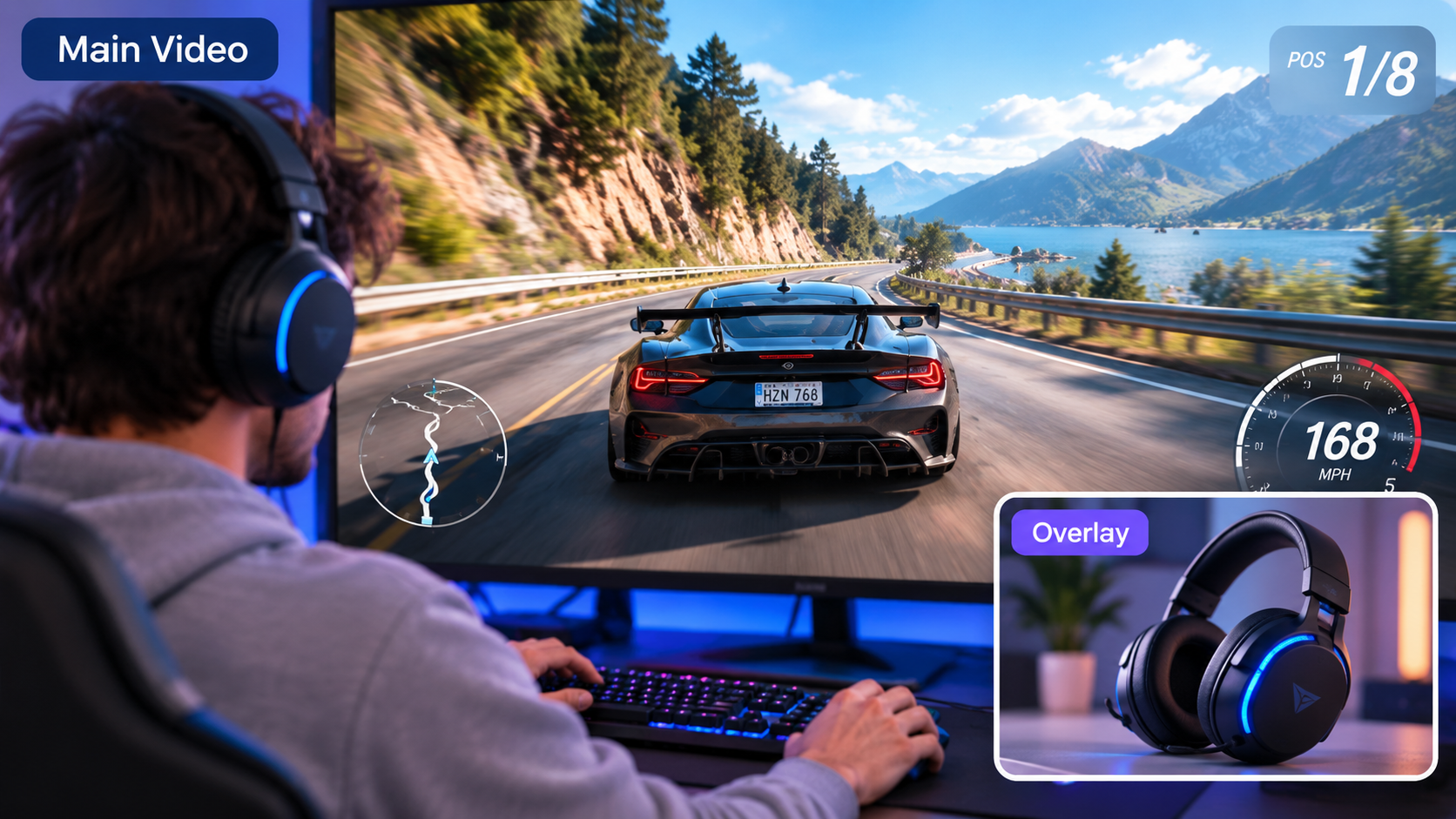
Video overlaying is basically putting two videos on the same screen at once. You see it all the time in gameplay commentaries, product comparisons, and stuff like that. The most common ways to do it are picture-in-picture and split-screen. Here, we’re going to cover the basics of video overlaying and show you how to blend two videos together using standard tools.
What Are the Different Ways to Overlay Videos?
Different overlay styles work best for different situations. Here are the common types and when to use them.
| Method | How It Works | Best For |
| Picture-in-Picture | Displays a smaller video over the main footage | Reaction videos, gaming |
| Split Screen | Shows two videos side by side or stacked | Product comparisons, interviews |
| Transparent Overlay | Blends two videos using opacity or blending modes | Double exposure, creative effects |
| Subject Overlay | Removes the upper video's background while keeping the subject | Character compositing, visual effects |
The best way to overlay videos depends on your preferred layout and whether you need to remove backgrounds or blend scenes. For example, gaming creators often place a facecam in a corner while keeping the gameplay visible. This technique also works for reaction and meme content, as explained in our meme video creation guide.
How to Overlay a Video on a Video with AI
RoboNeo lets you use prompts right on the canvas to edit your uploaded footage with AI and easily create video overlays. If standard editing tools feel clunky, give RoboNeo a try. Here are the steps to follow.
Step 1: Open RoboNeo AI Video Editing
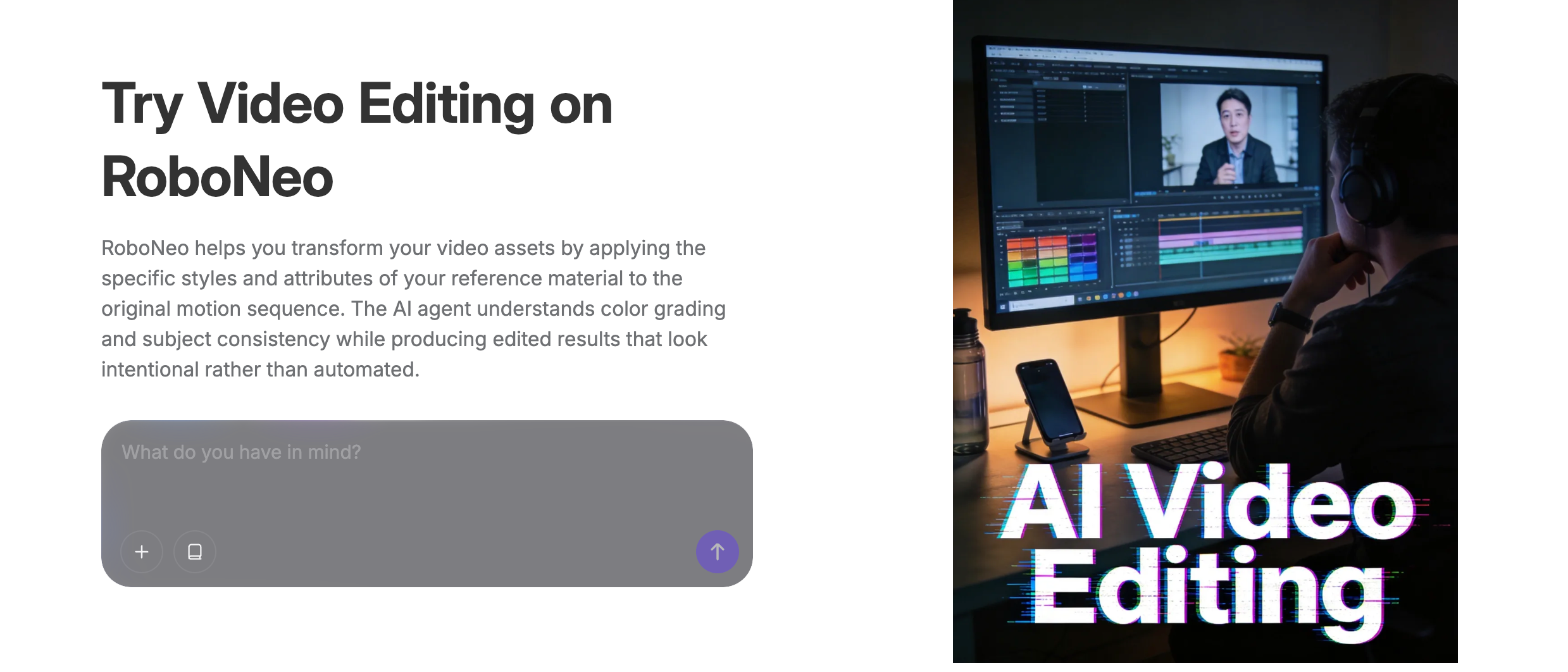
Open the RoboNeo AI video editor and enter the editing workspace to begin working with your footage.
Step 2: Upload Your Videos
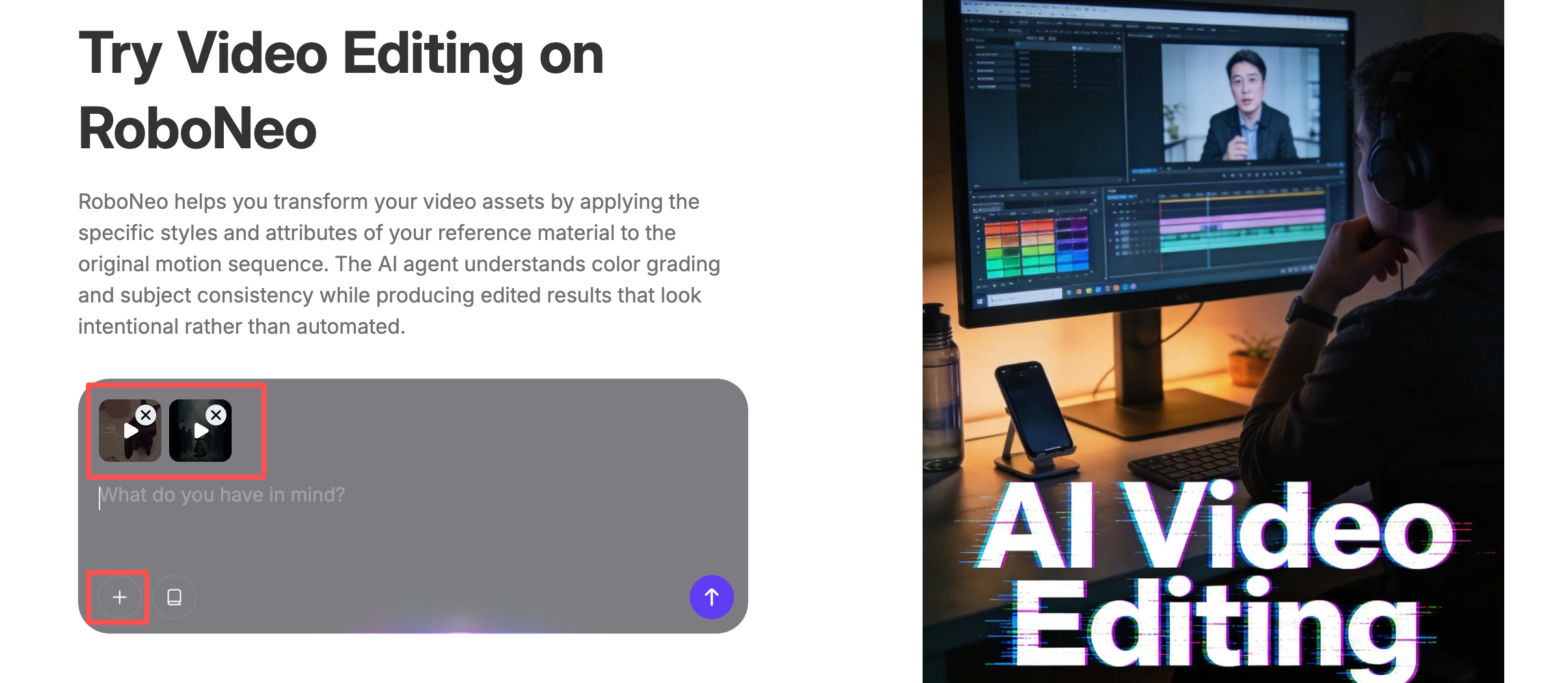
Upload the two video assets you need to overlay.
Step 3: Enter Your Video Overlay Prompt
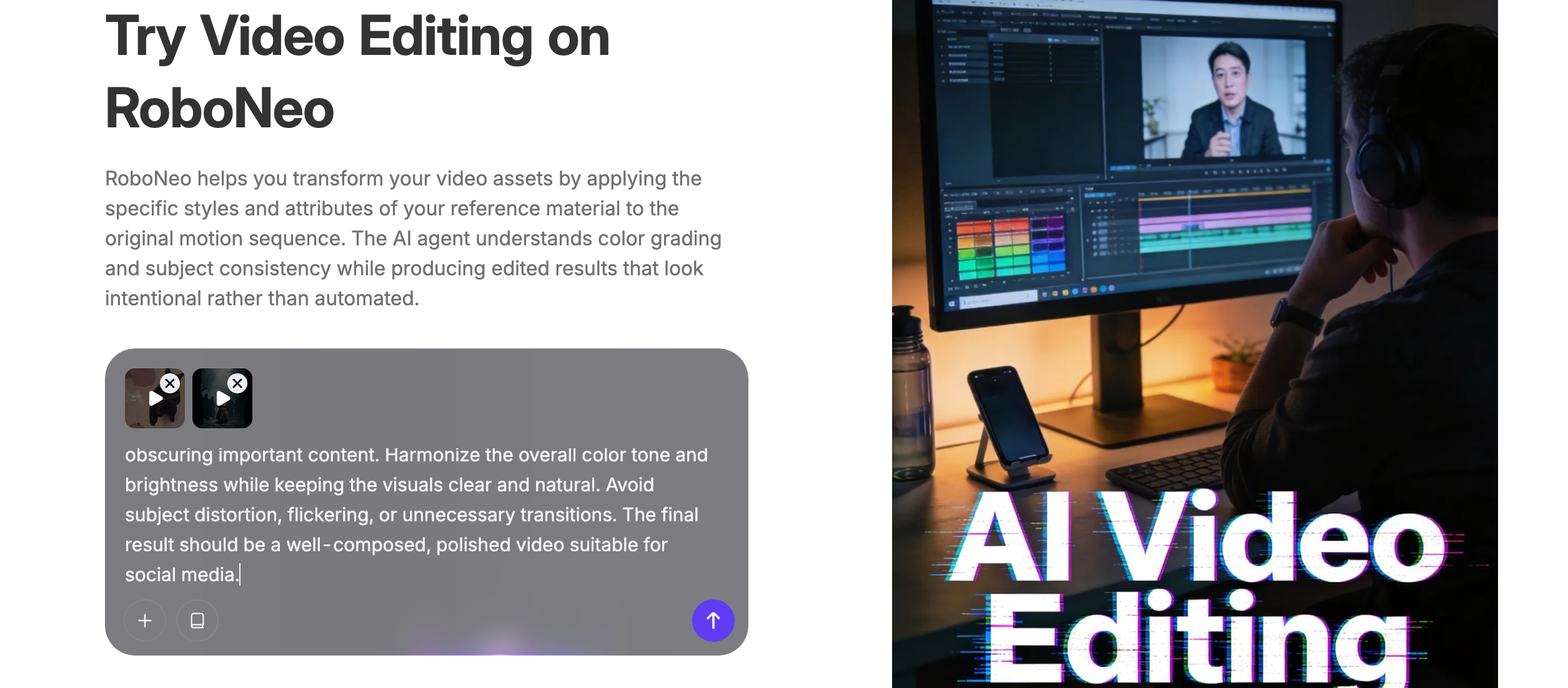
Describe how you want to combine the two videos, including their positions, sizes, timing, and visual style.
Example prompt: "Use the first video as the main background and overlay the second video in the top-right corner as picture-in-picture, covering about 30% of the screen width. Keep both clips synchronized, preserve their original motion, and add a subtle border and shadow."
Step 4: Generate and Review the Result
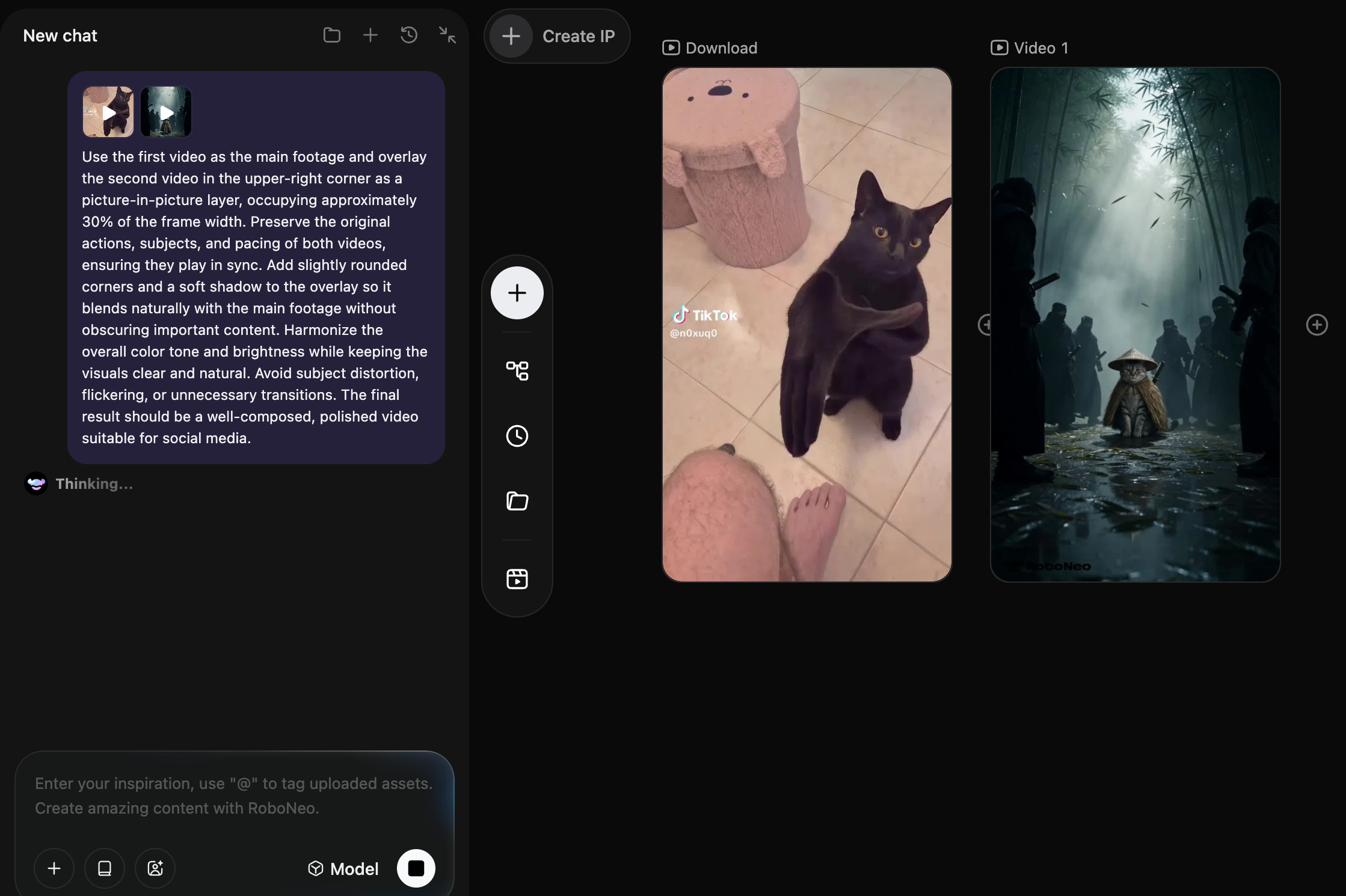
After you hit submit, RoboNeo heads over to the canvas to get to work. Keep an eye on that screen to see how it's going.
Step 5: Preview, Refine, and Download Your Video
Once it's done, take a look at the preview. Make any tweaks you need and grab your download.
Now, if you're building an overlay and realize you don't have the right support footage, no worries. You can just use RoboNeo to generate exactly what you need from a text prompt or reference pics. It’s a super quick way to fill in the blanks.
And if your two clips have totally different vibes and just don't look good stacked together, run them through RoboNeo's AI video editor. You can tweak how they look, so they actually fit nicely in the same frame.
How to Overlay Two Videos in CapCut
CapCut is a practical option if you want to learn how to overlay video on video using a traditional timeline. You can place two clips on separate tracks, resize the upper video, and adjust their timing. Follow these steps to create a video overlay on CapCut desktop.
Step 1: Import the Main Video Open CapCut desktop and click New project. Select Import to upload your background video, then drag it to the timeline.
Step 2: Add the Second Video Import the second clip into your media library and drag it to a separate track above the main video. Both videos will now play simultaneously to create the overlay.
Step 3: Adjust the Overlay Video Select the second video and drag the corners into the preview window to resize and reposition it. You can place it in a corner for picture-in-picture, or enlarge it for a split-screen or other layouts.
Step 4: Preview and Optimize Play the video to check the positioning, duration, and transitions of both frames. You can also add text, stickers, filters, or effects to enhance the final result.
Step 5: Export the Video Once editing is complete, click Export and select the appropriate resolution, frame rate, and format for your target platform. If you're creating overlays for TikTok, our TikTok video creation guide covers additional editing and publishing considerations. Confirm your export settings and save the finished video.
How to Overlay Videos in iMovie on iPhone
If you want to learn how to overlay a video on your iPhone, iMovie offers a straightforward picture-in-picture option. You can place a smaller clip over your main footage and adjust its size and position. Follow these steps to create a video overlay using iMovie.
Step 1: Open Your Movie Project Open iMovie on your iPhone and go to an existing movie project. If you don't have one, create a Movie project first and add your main background video.
Step 2: Choose Where to Add the Overlay Move the playhead (the white vertical line) on the timeline to the exact spot where you want the second video to start.
Step 3: Add the Second Video Tap Add Media, choose Video, and select the clip you need to overlay.
Step 4: Select Picture in Picture Tap More (often shown as three dots) and select Picture in Picture to overlay the second video onto the main one.
Step 5: Adjust and Preview the Overlay Select the overlay video in the timeline. Use the positioning controls in the preview window to adjust its size and location. You can also add a border or adjust the display area as needed, then play it back to preview.
Step 6: Export Your Video Once the display and duration meet your expectations, tap Done. Then tap the share button to save the composited video to your iPhone.
Tips for Making Video Overlays Look More Natural
Whatever overlay method you pick, check these tips before and after you edit.
Keep Important Content Visible: Don't let the videos block each other's subjects or text. Keep the main action clear.
Match Lighting and Colors: Match the brightness and color temp. Makes the whole thing look better.
Avoid Overcrowding the Frame: Don't clutter the screen. Leave space for the main video to breathe.
Check Edges and Motion: Check for weird edges. Make sure the motion lines up. No jarring cuts.
Adjust Audio Levels: When two video clips have separate audio tracks, mute unnecessary sounds or lower the overlay's volume to keep the main dialogue clear. If your footage contains distracting noise, see this background noise removal guide.
Optimize Size and Opacity: Resize it. Lower the opacity for double exposure. Keep picture-in-picture sharp.
FAQ
Can you overlay videos with different frame rates?
Sure. But expect stuttering. The motion might look choppy. To fix it, set your export frame rate to match the main clip. Preview it first to make sure it looks smooth.
Can you overlay more than two videos at once?
Totally. Just use a multi-track editor. Drop all your videos onto separate tracks. Move them around. Change the length. Adjust the display order.
Why does my video overlay appear black after exporting?
Could be a broken file path. Might be a codec issue. Or just a random export glitch. Check your source files first. Make sure the overlay track is visible. Then re-export as an MP4 (H.264). That usually solves it.
Can you overlay videos without changing the original files?
Most video editors combine your clips in a separate project and export a new video without modifying the original files. Your source footage remains available for future editing.
Can you legally overlay clips from other people's videos?
You need permission. Or a legal exception. Editing their clip or giving them credit doesn't give you the right to republish it.
You May Be Interested
6 Best Tools to Fix Blurry Videos in 2026

How to Make AI Videos: Beginner Tips and Best Tools

How to Make Realistic AI Videos: Tips and Mistakes
How to Make Sora AI Videos: Prompts and Steps
Make Videos from Photos Online: A Complete 2026 Guide