
How to Blur Background in Video: Keep Your Subject in Focus
 RoboNeo TeamOctober 29, 2026
To blur out a video background, you basically have three routes: duplicating the layer and adding a blur effect, letting AI handle the background automatically, or using pro software with masking and tracking tools. Every method fits a different skill level and type of footage. Here, we’ll walk you through how to blur backgrounds and keep your subject sharp using CapCut, RoboNeo AI, and Adobe Premiere Pro.
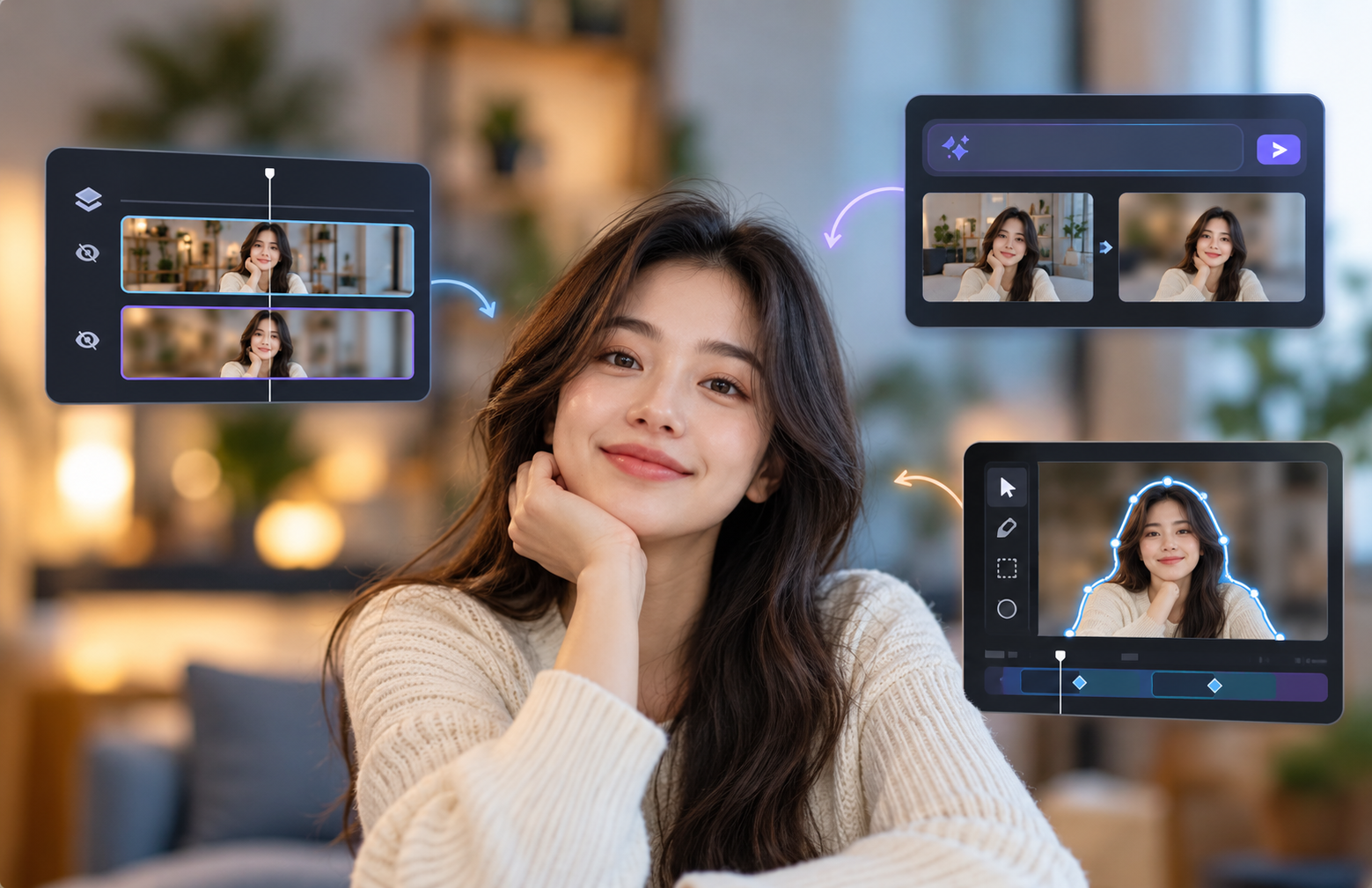
Comparison of 3 Video Background Blur Tools
| Tool | Pricing | Is Background Blur Free? | Supported Platforms | Pros | Cons | Best For |
| RoboNeo | Free credits available; some video features require paid plans or credits. Pricing varies. | Free while sufficient free credits are available | Web, iOS | AI-powered video editing through text prompts, background blur capabilities, and a beginner-friendly workflow | Not ideal for precise frame-by-frame editing | Creators who want to edit videos with AI, produce creative content, or reduce manual editing |
| CapCut | Free basic features; Pro starts at approximately $19.99/month | Basic blur effects are free. Keeping the subject sharp with automatic background removal may require payment, depending on the version and feature availability. | Web, Windows, Mac, iOS, Android | Easy to use, adjustable background blur intensity, and additional video editing features | Some effects and advanced features require payment; moving subjects may need extra edge refinement | TikTok, Reels, and Shorts creators who need quick, everyday video editing |
| Adobe Premiere Pro | Paid subscription; approximately $22.99/month for individuals in the US (annual plan, billed monthly) | Paid subscription required | Windows, Mac, mobile | Advanced blur effects, masking, keyframes, and precise control over background blur while keeping subjects sharp | Steeper learning curve; detailed subject isolation and motion tracking may require more manual work | Professional video editors, advertising teams, and users who need precise control over visual effects |
Choosing how to blur the background in a video depends on your editing experience and the level of control you need. CapCut is suitable for everyday editing, while Premiere Pro offers more precise masking and tracking. For creators interested in prompt-based workflows, the RoboNeo AI video editor provides another way to edit existing footage.
How to Blur a Video Background with RoboNeo
If you want to add a blurred background to a video without manually adjusting multiple timeline layers, RoboNeo offers a prompt-based editing workflow. Upload your footage, describe the blur effect you want, and review the output. The available editing results depend on the selected model and source video.
Step 1: Open the RoboNeo Homepage
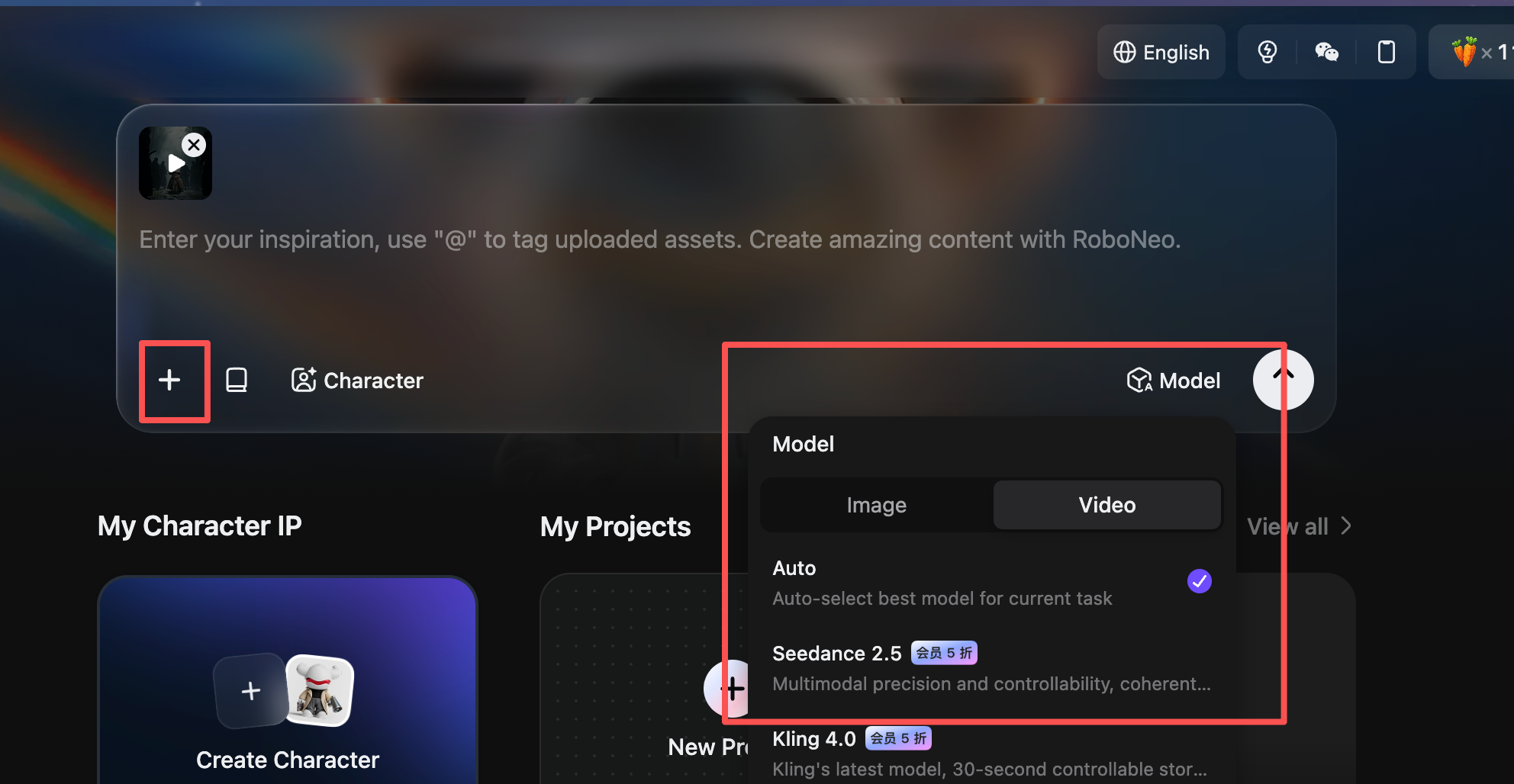
Access the workspace and upload your video. RoboNeo also offers a variety of model options.
Step 2: Enter Your Prompt
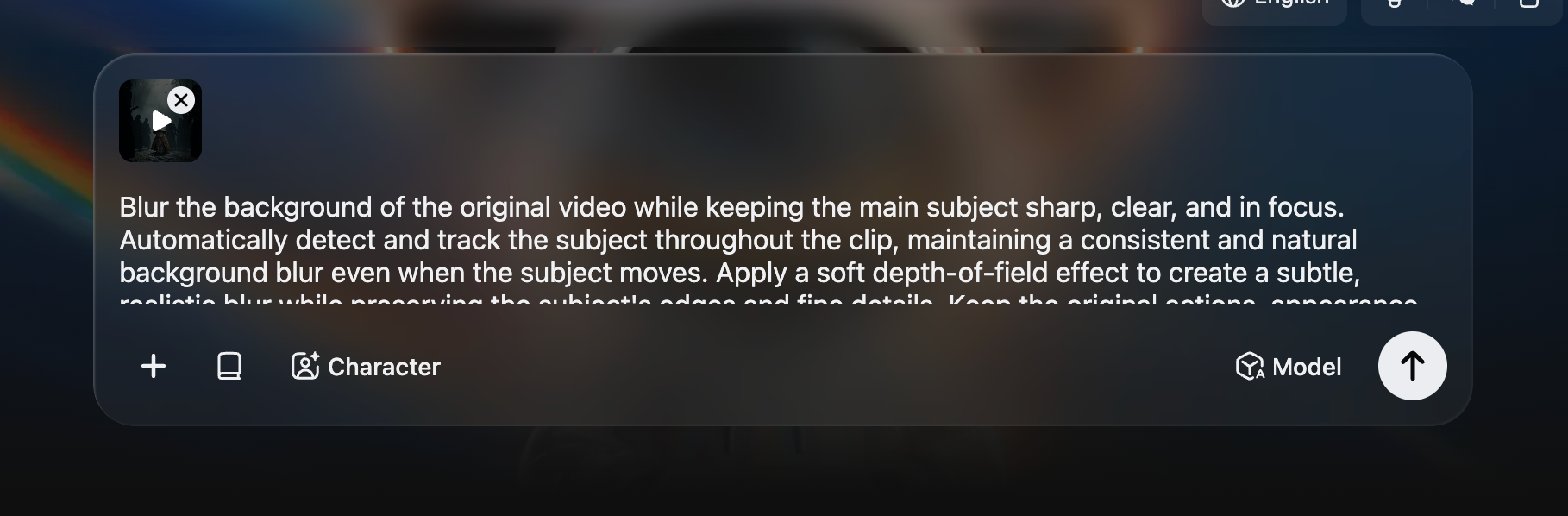
Enter a prompt such as: "Blur the background of the original video while keeping the main subject clear, sharp, and in focus. Automatically identify and continuously track the subject to ensure the background blur remains stable and natural even during movement. Apply a soft depth-of-field blur to moderately blur the background while preserving the subject's edge details. Keep the original video's action, appearance, clothing, composition, and pacing unchanged. Do not alter the subject or generate additional objects. Avoid edge blur, subject distortion, background flickering, and unnatural transitions."
Step 3: Refine the Blur Effect
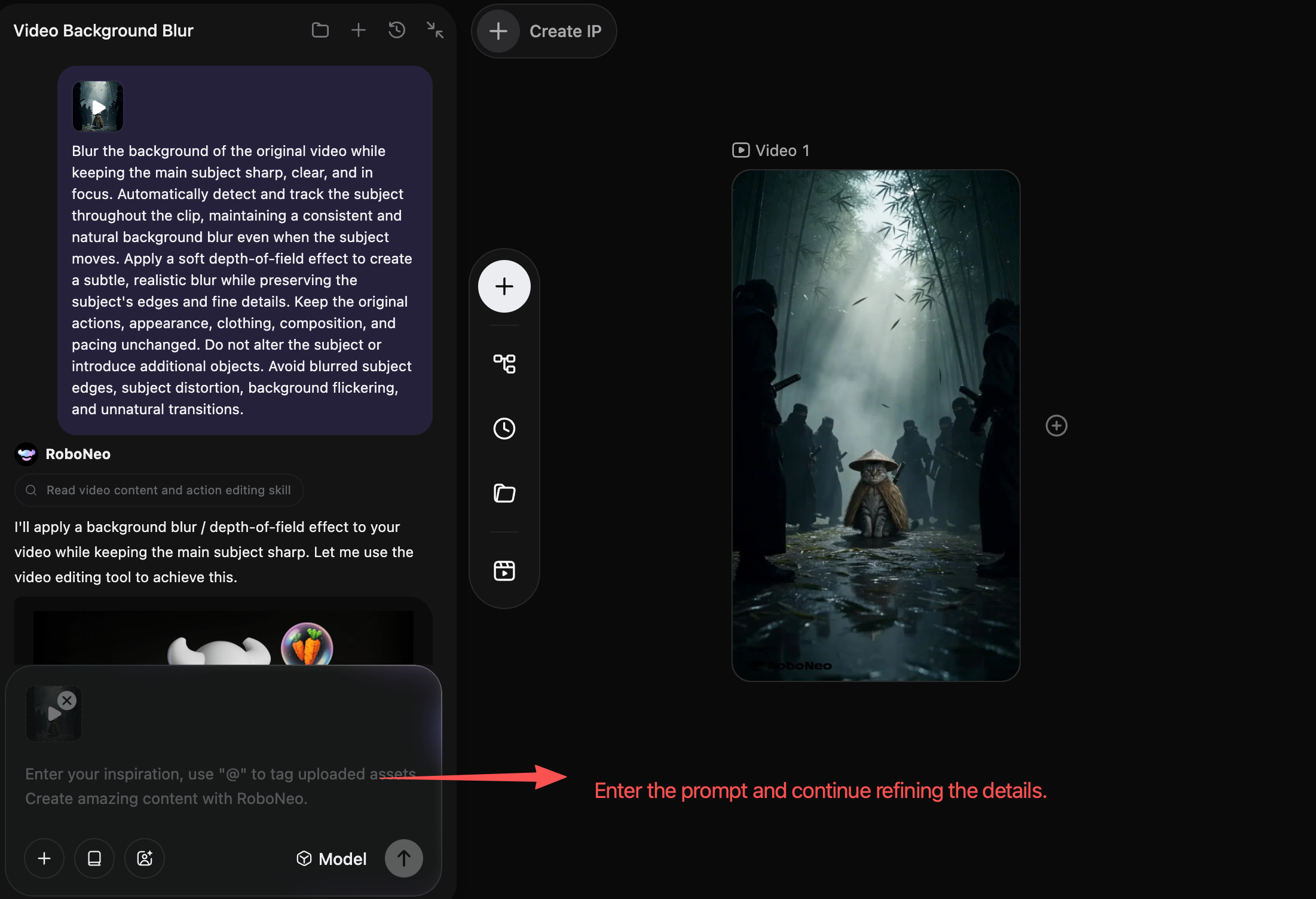
After submitting the task, wait for RoboNeo to complete the process. It is recommended to review the generated video, especially the main subject's performance, and continue to refine the prompt if necessary.
Step 4: Export Your Video
If the video background is cluttered and the subject lacks emphasis, RoboNeo can automatically separate the person or product from the background and add a blur effect to highlight the visual focus. Once adjustments are complete, export and save the video.
Compared to other editing tools, you only need to upload assets and use a prompt to get a video with a blurred background and a sharp subject. This significantly reduces editing difficulty and saves users time.
How to Blur a Video Background with CapCut
CapCut offers a practical way to blur the background in a video while keeping the main subject sharp. By duplicating your clip, applying a blur effect to the lower layer, and removing the background from the upper layer, you can control the final look without blurring the person or object in focus.
Step 1: Import Your Video Open CapCut. Hit a new project. Click Import. Drag your video to the timeline.
Step 2: Duplicate the Video and Blur the Background Layer Copy the video. Put the copy on the top track. Select the bottom video. Go to Effects → Video effects. Search Blur and apply. Tweak strength.
Step 3: Remove the Background from the Top Layer Select the upper video layer and go to Video → Remove BG → Auto removal. CapCut will isolate the subject, allowing the blurred background layer to appear behind it. Make sure both clips are aligned so the subject remains in the correct position.
Step 4: Preview and Adjust Play it. Check the edges and motion blur. Fix the blur strength if needed. Keep the subject sharp.
Step 5: Export Your Video Click Export on top right. Set resolution, frame rate, format. Export.
How to Blur a Video Background with Adobe Premiere Pro
Adobe Premiere Pro provides precise background blur control through Gaussian Blur, masks, and motion tracking. It's suitable for complex footage where you need to keep the subject sharp while softening the surrounding scene. For additional adjustments before exporting, this guide to improving video quality covers exposure, sharpness, and other editing considerations.
Step 1: Import Your Video
Open Adobe Premiere Pro, import your video, and drag it onto the timeline.
Step 2: Apply Gaussian Blur
Open Window → Effects. In the Effects panel, search for Gaussian Blur and drag the effect onto the video clip in your timeline.
Step 3: Create a Mask Around the Subject
Open Window → Effect Controls. Locate the Gaussian Blur effect, select Free Draw Bezier, and draw a mask around the outline of the person or subject in the preview window.
Step 4: Invert the Mask and Adjust the Blur
In the mask settings, check Inverted so the blur effect applies to the background outside the subject. Adjust Blurriness to control the blur amount, and use Mask Feather to soften the edges for a natural transition.
Step 5: Preview and Export Your Video
Play the video to check if the mask accurately tracks the subject as they move. If the subject moves, use the mask tracking feature. Once satisfied, select File → Export → Media to export the video.
Tips for Making Video Background Blur Look Natural
Blurring the background means the video still needs to look natural. Keep everything harmonious.
Avoid Excessive Background Blur Avoid applying too much blur, as it can make the subject look unnaturally separated from the scene. Keep enough environmental detail to maintain depth. Remember that background blur is different from fixing an unintentionally blurry subject. If your original footage lacks clarity, explore these tools for fixing blurry videos.
Keep Subject Edges Clean and Natural Check hair and shoulders. No fuzzy edges. No halos. No background leftovers. Tweak the mask feathering. Blend the subject naturally.
Use Proper Lighting for Better Results Light the subject well. Avoid huge brightness gaps. Good contrast helps AI find the edges accurately.
Check Blur Consistency During Movement Watch the full clip. Check blur stability during movement. Look at fast turns and overlaps. No sudden sharp backgrounds. No flickering edges.
AI Prompts for Creating Videos With Blurred Backgrounds
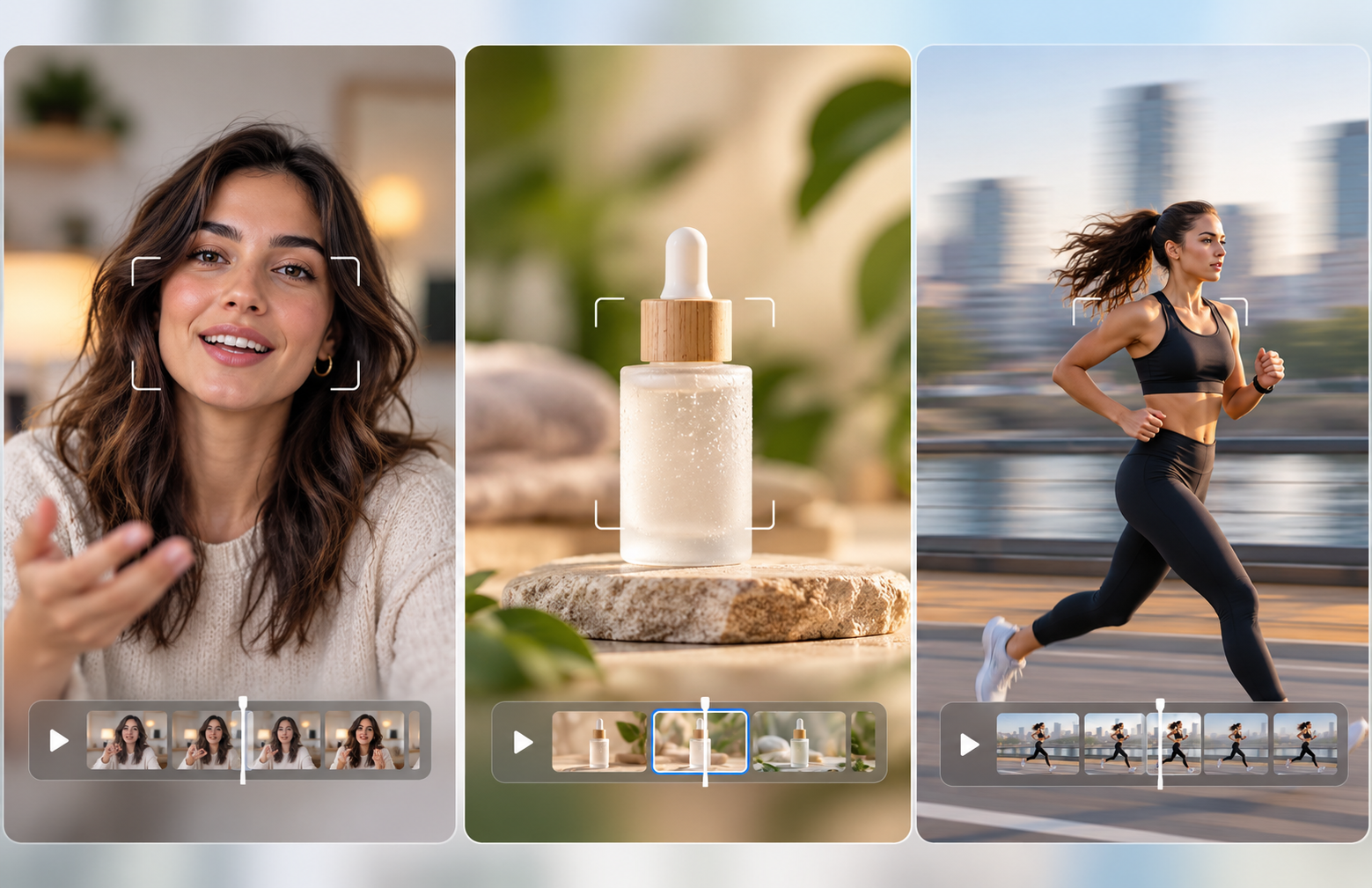
When using AI to blur the background in a video, a clear prompt helps define what should stay sharp and what should be softened. Focus on the main subject, desired blur intensity, and movement. For additional prompt-writing ideas, explore these tips for writing AI video prompts.
1. Portrait Videos: Keep the Face Sharp and Blur the Background Perfect for talking heads, selfies, or interviews. The main goal is keeping the face super clear while softening the background. You want to avoid any weird fuzz or halos around the hair and body edges.
2. Product Videos: Highlight Product Details With a Soft Background For product demos, you need the item's look, texture, and details to pop. Don't let background clutter distract viewers. Go for a soft background blur, but make sure the product's outline and textures stay totally intact.
3. Moving Subjects: Maintain Focus With Consistent Background Blur Think running, walking, or sports scenes. You have to emphasize continuous subject tracking. The person needs to stay sharp while they move, and the background blur shouldn't randomly glitch or jump around.
FAQ
Can you blur the background of a video with multiple people?
Yes. RoboNeo AI can identify multiple subjects. However, you might notice some inaccurate edge detection when subjects overlap or move quickly. If you're using traditional editing tools, dealing with multiple people will add a certain level of complexity and require more time.
Can you reverse a background blur after exporting a video?
Usually, you can't fully undo it. If it's an important project, always keep a backup of your original raw footage just in case.
Does background blur increase video file size?
Not necessarily. File size really comes down to resolution, bitrate, codec, and length. If you re-export using different encoding settings, the file could end up bigger or smaller.
Can you blur a video background during a livestream?
It really depends on what app you're using and the gear you have. Most live streaming software actually has background blur built in these days. Some phones and webcams can even do it in real-time. Video meeting apps or streaming platforms might offer it too. Just do a quick check before you go live.
Is background blur enough to hide sensitive information?
Not necessarily. If the sensitive information is located outside the background, you will need to provide additional prompts to RoboNeo or edit it manually. Even if the information is within the background, factors like blur intensity still need to be considered.
You May Be Interested
3 Best Background Noise Removal Apps for 2026
Canva Watermark Remover Review: Features and Limits
How to Remove Background in GIMP: Get a Clean, Transparent Cutout

How to Remove Background on Canva: Steps and Alternatives
How to Remove Background Noise from Video: Easy Guide